WallShift

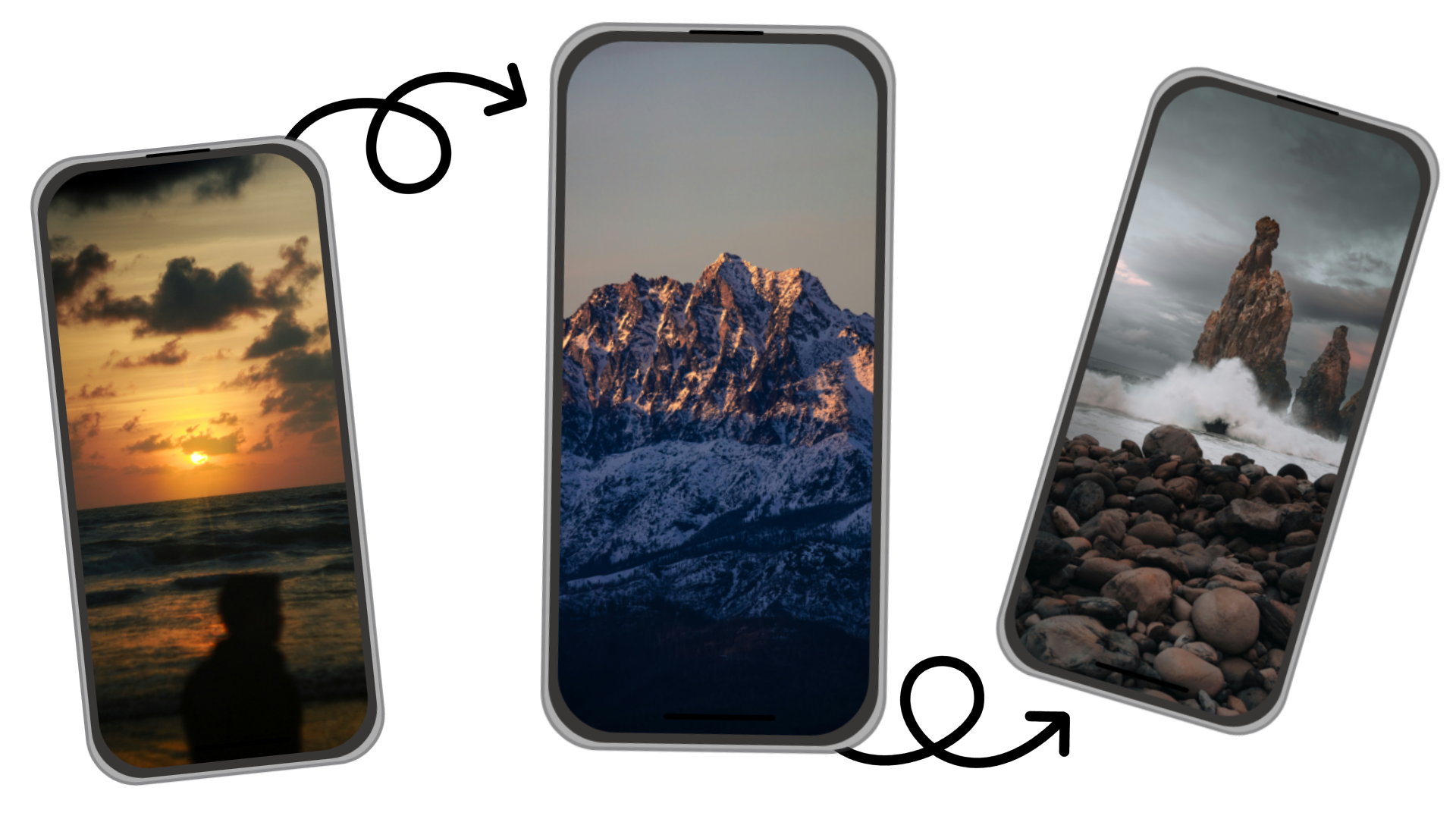
Instantly refresh your device’s look. Wallshift lets you change your wallpaper anytime, any way you like.

Join Our Public Beta!

  1. 👥 Join our Google Group: Wallshift Beta Group
  2. 📝 Register as a tester: Become a Tester
  3. ⬇️ Download the app: Wallshift on Google Play

Note: The app is currently only available to beta testers by following the steps above.

Albums

Group wallpapers into albums and set how each one updates.

Smart Triggers

Change wallpapers with timers, location, gestures, and more.

External Sources

Use images from sources like Reddit for your wallpapers.

Image Selection

Pick images, folders, and many other external sources.

Premium Experience

Get ad-free browsing, exclusive triggers, and unlimited albums.

Wallpaper Settings

Personalize with adjustable opacity, blur, and other effects.

FAQ

Learn more about our app’s features, how it works, and what makes it different.

WallShift handles all images individually, so performance isn’t affected by how many you add. You can include as many images as you like. For easier organization, it’s best to use folders if you have a lot of images. WallShift was tested with folders containing up to around 3,000 images. Using more might slow things down, and we may not be able to support very large collections. Single image selections are only limited by your device’s available storage.

If you add images one by one, the app makes a copy of each image so it can use them properly. This can make the app take more space over time. If storage use seems high, try switching to folders instead. When using folders, the images aren’t copied, which helps save space.

WallShift works within recommended limits from each image source to ensure smooth browsing for everyone. You can load over 60 images per minute from external sources, which is more than enough since loading images is typically slower than this. So yes, there are limits, but none that are achievable in practice.

Android does not allow separate wallpapers for the lock and home screens due to system limitations. As of Android 16, this requires root access, which we chose not to support for security reasons.

If you want to change which screen uses the live wallpaper or switch to a different option at runtime, simply open the WallShift settings and tap "Update Live Wallpaper." This will prompt you to select your preferred screen or wallpaper, making updates quick and easy.

When you select a folder, WallShift only looks at the images directly inside that folder. It does not search through subfolders or deeper levels, but you can select those subfolders separately if you want to include them.

WallShift automatically checks your folders for new images at set intervals. If you add or remove images, they're detected and updated without needing to open the app.

To hide a folder from WallShift and other apps, add a file named .nomedia inside the folder. This prevents images in that folder from being scanned or shown.

Help Us Improve!

Tell us what you want to see in WallShift!
Your suggestions guide our team, and may be rewarded with free premium access.

Send Feedback